
{{term}}
{{navSearchItemTypeDesc( item )}}
Watch Free
No results
Meet your TV concierge.
Need something to watch? We’re on it. Plex combines free movies & TV with your favorite streaming services, so there’s always more to discover.
Ready. Set. Rent.
Starting from $3.99, rent everything from the latest blockbusters to all-time favorites.
Shop Rentals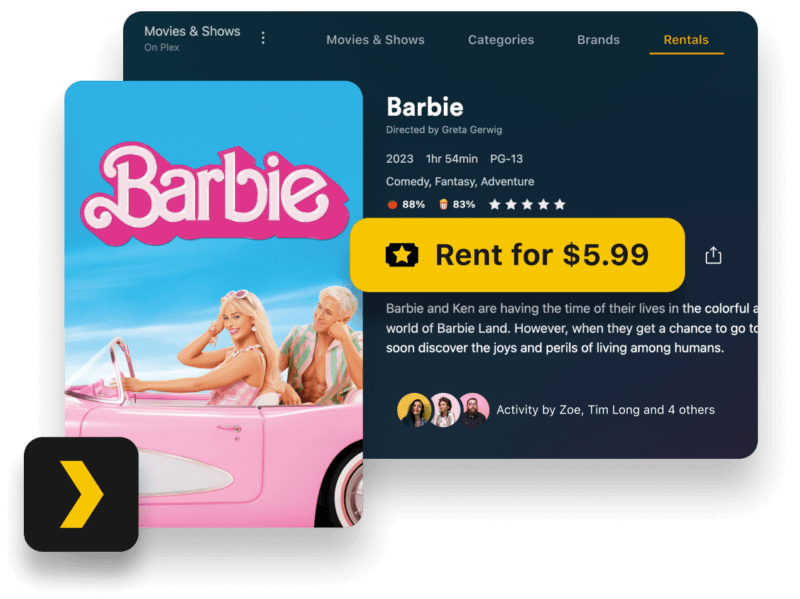
What we’re watching now.
This is just a peek. Choose from thousands of free ad-supported titles from our on-demand library.
See What’s OnSorry, this Hub is not available at the moment.
We like our TV free.
With over 600 channels (and counting) available in the US and hundreds available worldwide, your inner couch potato will rejoice.
See What’s On NowSorry, this Hub is not available at the moment.
What will we Discover Together?
Finding what to watch next is better when you do it together. Search for and add friends, share, comment, and more using Discover on Plex.
Learn More
Bring your media to the pro side.
There’s a lot of options out there for storing your media. But if you’re looking to organize, stream, and share it in the most beautiful way possible, Plex is your app.
Get Plex Media Server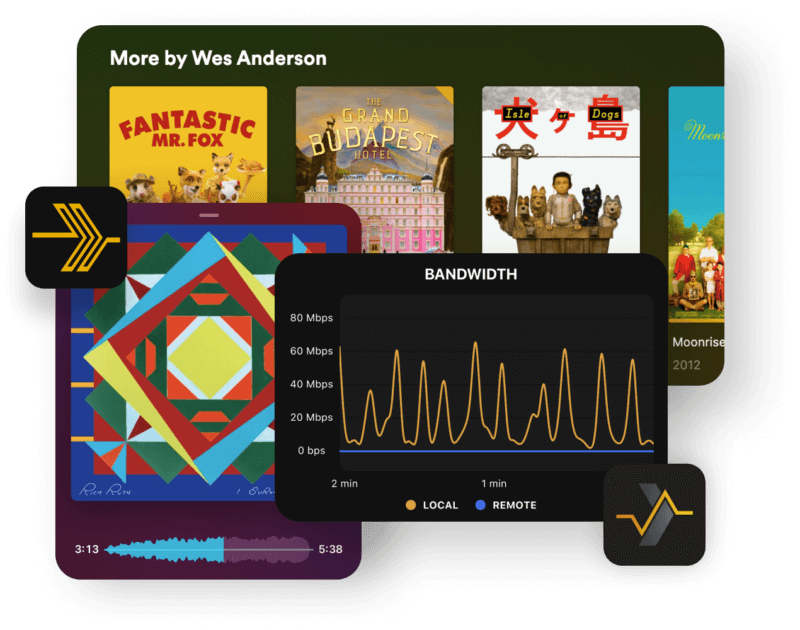
Rediscover your music.
Imagine loving music so much that you pour your heart, soul, and engineering know-how into creating a completely custom music player for music lovers just like you. Well, that’s exactly what we did.
Discover Plexamp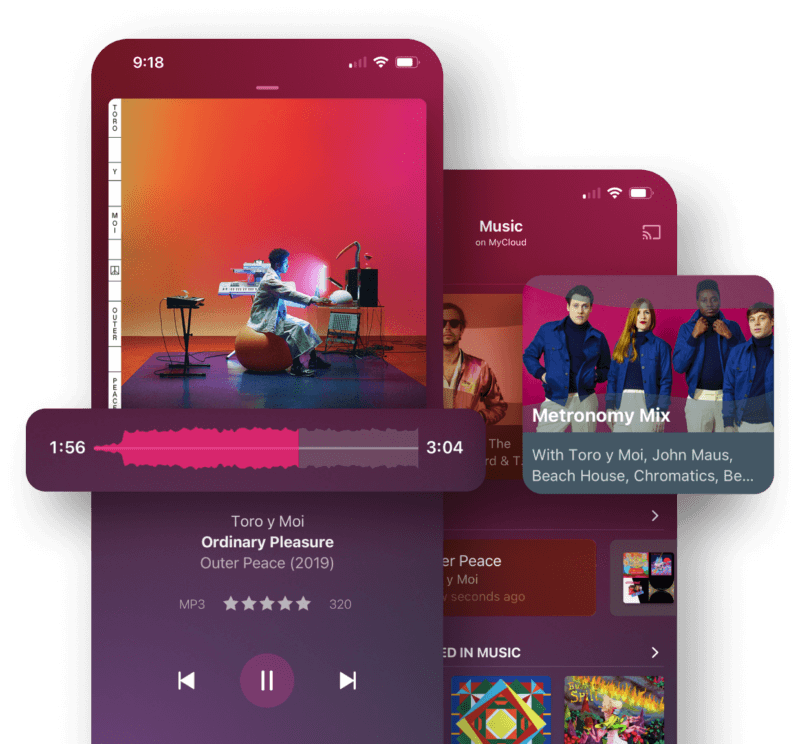
Download Now


Save
One list to rule them all.
With a free Plex account you can keep a single, unified list for any movie or TV show you hear about, on any service—even theater releases! You can finally stop hopping between watchlists on Max, Amazon Prime, Paramount+, and all your other streaming services, and add it all on Plex instead.
Create Your Free Account


Watch


Explore
Find your friends on Plex.
What if you could find what to watch next based on ratings and activity from people you know in real life? With Discover Together, you can. Now you can search for and add friends, share, comment, and more.
Learn More


You bring your media, we’ll do the rest.
We love personal media too! Use Plex to organize, beautify, and stream your personal collection of movies, TV shows, music, and photos anywhere, on all your devices.
Learn More
And that’s just (film) facts.
See what films and shows your favorite actors are in (and add them to your Watchlist) without ever leaving Plex! With Discover Credits, it’s all united into a single page, including which of their titles are available in your personal media libraries, on demand, or elsewhere via Discover.
Search the Stars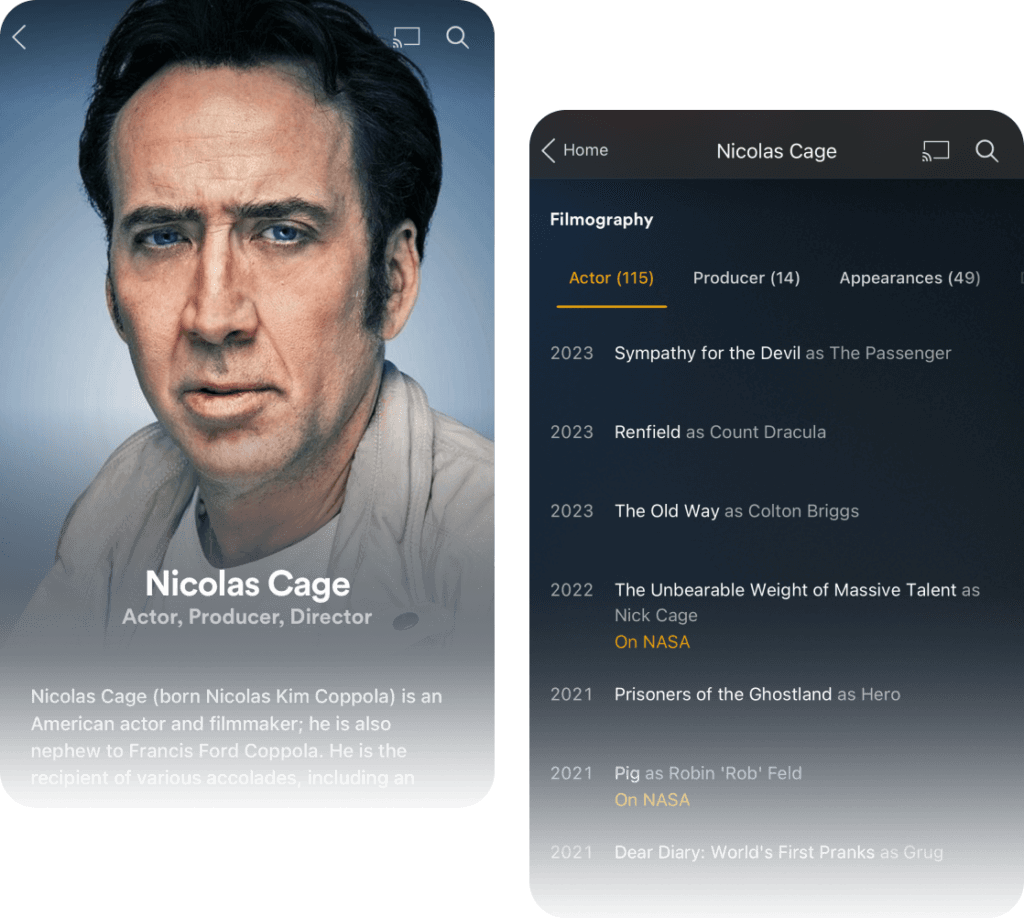
Streaming Is Believing 
Question or two? Here’s an answer or two.
What is Plex?
A one-stop destination to stream movies, TV shows, and music, Plex is the most comprehensive entertainment platform available today. Available on almost any device, Plex is the first-and-only streaming platform to offer free ad-supported movies, shows, and live TV together with the ability to easily search—and add to your Watchlist—any title ever made, no matter which streaming service it lives on. Using the platform as their entertainment concierge, 17 million (and growing!) monthly active users count on Plex for new discoveries and recommendations from all their favorite streaming apps, personal media libraries, and beyond.
Is Plex really free?
Plex is a free streaming app for everyone, no credit cards or subscription costs or hidden fees. To keep our service free we include ads which monetize all of the content that our partners, such as Lionsgate, AMC, and A24, provide to us.
Where is Plex available?
Plex is available in almost every country in the world. No other free streaming service delivers more content to and from more countries worldwide.
Where can I watch Plex?
Watch Plex instantly online from your personal computer or on any internet-connected device that offers the Plex app. That includes streaming media players (Amazon Fire TV, Android TV, Apple TV, Chromecast, Roku, etc.), smart TVs (LG, Hisense, Samsung, VIZIO, etc.), smartphones, tablets, game consoles, and more!
Do I need a Plex account?
You do not need to create an account to use Plex, but you get more when you do. Benefits that come with your free account include access to your very own universal Watchlist, the ability to customize the streaming services that show up in your search results, the ability to pick up where you left off on any device, and more.
How can I personalize my Plex experience?
It’s free and easy. Just create your free Plex account, and you can add movies to your own universal Watchlist, add favorite channels to your live TV lineup, personalize your streaming services, and more.
What is Plex Pass? And can I use it to watch Plex ad-free?
Plex Pass is our premium subscription option designed for our users looking to get the most out of their own personal media via their Plex Media Server. We do not currently offer any option for watching Plex-provided content without ads. A Plex Pass does not remove ads, nor does it provide access to extra content on our free services. Check out an overview on Plex Pass benefits here.
Can I use Plex to enjoy my own personal media?
Yes! If you are looking for the perfect home for your own media, look no further than the Plex Media Server. You can install the server on a computer or NAS device you already have and then get up and running in minutes. Check out our support articles here.